Raam Dev » thoughts essays journal notes contact about subscribe rss

Posts Tagged: Tricks

Lazy Linux: 10 Essential tricks for admins

Lazy Linux: 10 Essential tricks for admins is an awesome list of cool things you can do with Linux. I learned about trick #3 (collaboration with screen) from an admin at the datacenter where one of my servers is hosted. I remember being thrilled sitting there watching him do stuff on my server while sharing the keyboard to type messages back and forth in vi (think Remote Desktop or VNC, but on the console). Trick #5 (SSH back door) is something I’ve been using for years at work for remote diagnostics. It is an invaluable trick for getting around firewalls. Very cool stuff!

Instantly Preview Files in OS X using Quick Look

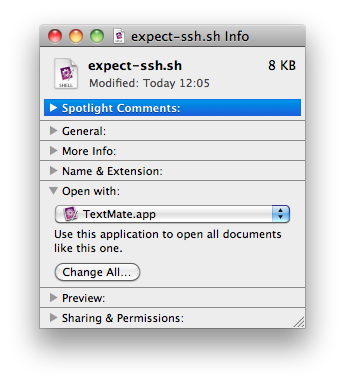
I discovered this feature as I discover many new things in OS X: entirely by accident. While I had a file on my desktop selected, my wrist accidentally hit the space bar on the keyboard. Instantly a quick preview window popped up giving me a preview of the image:

Mac OS X Quick Look

The feature, known as Quick Look, is one of the more than 300 new features in OS X Leopard (10.5). Quick Look also works on text files, documents, PDF files, and even HTML and PowerPoint. This method of previewing files is so much easier than opening them in their native application! (It’s more than a preview though, since you can also scroll through the pages for multi-page documents.) Closing the preview window is as easy as pressing Esc, or you can simply select another file with the preview open and it will preview the newly selected file.

HOWTO: Show the Full Path in Finder’s Title

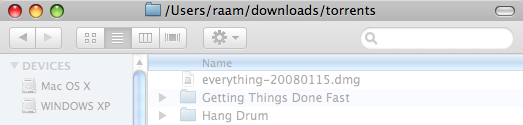
An annoying feature of the OS X Finder is that it doesn’t show the full path of the folder you’re currently browsing — it only shows the name of the folder in the title. I like seeing the entire path of the folder because I do a lot of stuff from the command line, so as you can imagine I was thrilled to discover an easy fix to this problem.

Simply open the terminal (Applications -> Utilities -> Terminal.app) and run the following command:

defaults write com.apple.finder _FXShowPosixPathInTitle -bool YES

You’ll then need to restart Finder by either rebooting or running the killall Finder command. Now Finder will show the full path in the title!

Path in Finder's Title

If for some reason you want to revert back to seeing only the folder name (I can’t imagine why you would), simply repeat the process and change YES to NO at the end of the command.

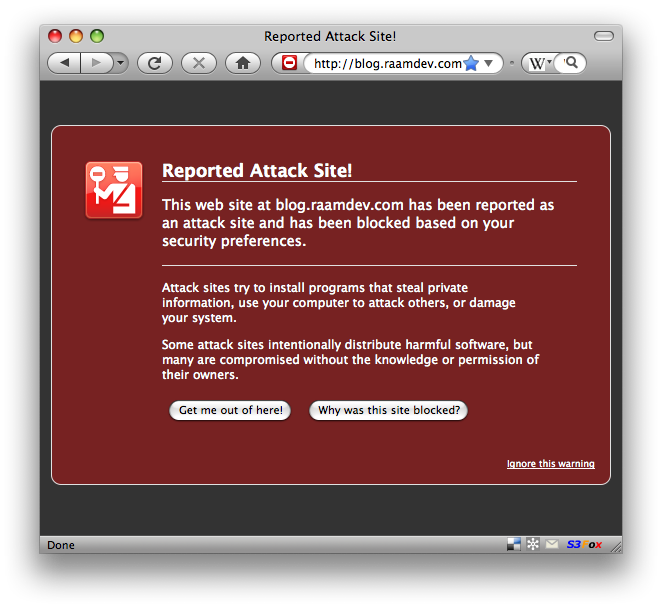
Google Reported Attack Site

Google Reported Attack Site

I’m sure some of you must have seen this warning when you tried to visit my site. Fear not, I have fixed the problem. There was an old file on my domain that had a link to a site that was defined as “malicious” by Google, so they basically added my entire domain to the watch list. I removed the file and, after asking Google to check my site again using Google’s Webmaster Tools, they removed my domain from the list.

So, how did I find the few pages (among thousands of files on my site) that contained a link to the malicious site Google was blocking me for? I logged into my site via SSH and ran a command like the following:

for i in `find . -name "*.ht*"` ; do echo $i; cat $i | grep 195\.2\.252; done

This basically searched every single .htm or .html file inside my public_html directory and returned anything that contained the IP address I was looking for. Whenever there was a match, the filename that preceded the output was the offending file. I'm sure there's a more elegant way of doing this, but hell, I just wanted to fix the problem!

Although this was annoying to deal with, it made me feel good that Google is actually keeping track of these things and, with the help of Firefox, is warning people of such sites. Site owners must be vigilant in fixing such problems or they risk losing loads of traffic from Google (and from visitors with Firefox).

Escaping Filename or Directory Spaces for rsync

To rsync a file or directory that contains spaces, you must escape both the remote shell and the local shell. I tried doing one or the other and it never worked. Now I know that I need to do both!

So lets say I’m trying to rsync a remote directory with my local machine and the remote directory contains a space (oh so unfortunately common with Windows files). Here’s what the command should look like:

rsync 'raam@example.com:/path/with\ spaces/' /local/path/

The single quotes are used to escape the space for my local shell and the backslash is used to escape the remote shell.

Where in the world is Raam?

Join the Facebook Community

Raam Dev » thoughts essays journal notes contact about subscribe rss

Powered by WordPress and other Open Source Software
Uncopyright by Raam Dev