

Whenever I open my rear cab window, leaves from the truck bed fly into the cab. I stopped removing the leaves when I realized they brought a touch of the outdoors into the cab 🙂
Whenever I open my rear cab window, leaves from the truck bed fly into the cab. I stopped removing the leaves when I realized they brought a touch of the outdoors into the cab 🙂
I've been living in the city (Cambridge, MA) for almost a whole year now and one of the biggest things I miss about living outside the city is the cleaner air. OK, the air in Lowell is not exactly clean but I can drive 10 minutes and be in the middle of a 1,000 acre state forest where the air is much cleaner. I used to do a lot of running before I moved to Cambridge, both indoors and outdoors, but now I feel afraid to run. I can smell the pollution in the air simply walking 10 minutes between my apartment and the office -- it makes the air dry and thick. I'm not one to quit simply because something is more difficult or because it doesn't taste or feel good. But when it comes to my health, I can't help but wonder, will running in polluted city atmosphere actually be worse for me than not running at all?
Every day I see so many people, young and old, running throughout the city and I wonder if the health benefits they are experiencing are only temporary -- if by sucking down so many unnatural, unhealthy chemicals they're actually shortening their overall lifespan. I touched on this subject a few months ago in a post titled Dirty Air. I concluded the post by saying that a healthy lifestyle cannot be had while working where the crowd works. I don't like to believe things are impossible and I feel there must be some type of balance that can be reached -- perhaps a combination of indoor aerobic activity (rowing machine), indoor anaerobic activity (weight lifting), and various weekend outdoor activities when I visit Lowell on the weekends.
I also wondered if running at night, or early in the morning, would be more healthy than running during the day. I noticed the air smells much cleaner during the late evening and early morning hours. My own hypothesis is that when the sun goes down and the air begins to cool, all the warmer air (which was mixed with pollution from cars and buildings as well as heated by the sun during the day) rises up into the atmosphere allowing the cooler, cleaner air (cleaned by moisture in the air, currents, etc.) to sink down to the ground. If this is true, then running at night and early in the morning, before people start leaving for work, could be much healthier than running during the day. Are there any night runners (or early morning runners) out there that can confirm any of this?
Only 3.5 hours of sleep -- I didn't get to sleep until 7:30am this morning because I was working on a project all night for work, which was due today.
We got it done.
We had to continue tweaking stuff throughout the day, and will need to continue doing so in the coming weeks, but that's expected.
Its always been difficult to set aside any great amount of time to learn a new programming language. I would tell myself there was so much more I could learn from PHP and I would further justify my lack of commitment by believing PHP was all I really needed to make great web applications.
When I started learning more and more about AJAX and the power behind JavaScript, a client-side scripting language, I began to realize just how much I was limiting myself by concentrating solely on PHP. The acceptance of my limitations hid me from the great power behind other programming languages. (Oddly enough, my sudden interest in classical music followed this recent mental rejection of several personal limitations -- I can't help but wonder if there's a connection.)
Don't accept your limitations, reject them. Treat every limitation like the rung on a ladder -- if you don't pull yourself above each one, you're never going to get anywhere!
This post started as a draft, sitting among 33 other drafts for a couple of months collecting dust in my WordPress dashboard (yes, I'm one of those type of bloggers). The original title of the post was "Sorry Speakeasy" and my intention was to finish writing the post after I canceled my Speakeasy Internet service at my house in Lowell and switched to Comcast. I was going to write about how awesome Comcast was because of their price, insane download speeds, and simplicity (generally no need to worry about old phone wires or paying for a separate land-line phone line, etc). I was going to write about how you can get basic cable TV plus high-speed Internet for less than the price of a single DSL line.
Well screw Comcast. Everything is different now. The title of this post has gone from "Sorry Speakeasy" to "Boycotting Comcast", and not without good reason. A few months ago I read in the news that Comcast was throttling BitTorrent traffic. Being someone who occasionally uses BitTorrent for legitimate reasons, I decided to run a few tests of my own. Sure enough, my entire cable connection crapped out for 20 minutes after downloading something over BitTorrent, sometimes to the point where a 56k dial-up connection would have been more responsive. A few weeks later I read an article about how Comcast was not only limiting BitTorrent traffic, but that it was using the same techniques communist China uses to monitor and control the Internet traffic for its 1.3 billion citizens. This was unacceptable, and from a legal standpoint, I believe entirely against the law (read HiThere's Slashdot comment here).
Speakeasy DSL has been nothing but good to me. They have awesome, educated technical service (much like LiquidWeb's technical service), and their prices are fairly decent. I had a Speakeasy OneLink DSL line at my house in Lowell, along with the $35 VOIP service, which is assigned my old cell number (the one I give out to everyone). I have it setup to forward all calls to my real cell number, so everyone can still reach me. If I ever want to stop receiving calls at that number and start using a new number, I can do it within a matter of minutes. After this ordeal with Comcast, I decided to transfer my OneLink DSL and VOIP service to my apartment in Cambridge. Sure enough, I was able to keep my 978 area code VOIP number, even though the service was in a 617 location.
I'm paying $56 a month for a 1.5/384 Speakeasy OneLink DSL line (which doesn't require a separate land-line!). I ran speed tests using both Speakeasy's speed test and SpeedTest.net and received identical results. Sure, its not nearly as fast as Comcast, but it is a consistent, never-fluctuating-just-because-I'm-using-some-suspicious-protocol speed:
Download Speed: 1312 kbps (164 KB/sec transfer rate)
Upload Speed: 326 kbps (40.8 KB/sec transfer rate)
Any time of the day (or night), regardless of how much of the bandwidth I've been using, that speed never changes. I've downloaded over 50GB of data over BitTorrent since the Speakeasy DSL line was installed and I haven't experienced any slowdowns at all. If I'm paying money for my Internet service, thats how it should be.
I'm officially boycotting Comcast, and since I don't watch TV, it's an easy thing for me to do.
I have gained a sudden interest in classical music! It's strange because classical music is nothing 'new' to me. Growing up, I would constantly hear classical music playing in the retail stores my parents owned. My mom would often listen to it in the car during our long commutes between the different stores (sometimes the entire day would be spent delivering product to the different stores). I eventually grew a strong distaste for classical music and found it very annoying after only a few minutes. It was always very difficult to concentrate while listening to it.
Today I randomly started listening to a classical music station after becoming frustrated about not being able to decide what kind of music I wanted to listen to (Internet radio). Although I am not entirely sure where the interest is coming from, for the first time (at least as far as I can remember), I loved what I was hearing. It was music to my ears (pardon the pun)!
Now I've been listening to classical music for the past 9 hours and it's simply amazing. It doesn't randomly cause me lose my train of thought while I'm in the middle of coding and there are so many variations that becoming repetitive and boring seems impossible. I have read programmer polls where the majority of programmers stated they listened to classical music while programming, and I've read articles about how listening to classical music while studying can help you retain information. Until now, I've never been able to understand how that was. I have tried coding to classical music in the past but quickly found it distracting.
I don't know what flipped the switch, but I think I've finally discovered the calming and concentration-enhancing effects of classical music!
I've been customizing slGrid for an application I'm developing at work. One of the things I needed to do was to enable the MODE_EDIT but at the same time prevent additions or deletions.
To prevent deletions, there is an option in /classes/gridclass.php called $editmode_delete, which you can simply set to false to prevent deletions and remove the 'Delete' column. However, this creates another problem: While editing a row, the 'Delete' button and the 'Cancel' button share the same column:
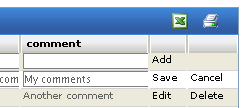
So by disabling deletions, we're giving up our 'Cancel' button. This means the only way to get out of edit mode after clicking the 'Edit' button, is to refresh the page. OK, so thats not the end of the world. Lets continue.
Our next problem is insertions -- we need to prevent users from adding new rows. I saw the $editmode_add option in /classes/gridclass.php, and assumed it would be as simple as changing it to false. But to my surprise, that only removed the 'Add' button, leaving the entire (empty) insertion row at the top of the table:
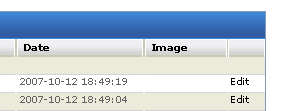
Well that doesn't make any sense. If there is an option to disable insertions, why leave the unused empty row? After lots of digging I finally found the block of code that needs to be commented/removed to prevent the empty row from loading:
gridclass.php:
						if ($this->mode == MODE_EDIT)
			{
				$insert_row = array();
				$row_index = -1;

				foreach ($this->columns as $column)
					$insert_row[$column->name] = "";

				$this->CreateRow($insert_row, $row_index, $visible_row_index, $table_main);
				$row_index++;
			}
After commenting out that block of code, I finally have what I want; slGrid in Edit Mode without the ability to Add or Delete:

I'm going to be working with slGrid a lot now and I'll be tweaking/customizing it quite a bit. I will be sure to share everything I learn here on my blog for others who may wish to use it.
You know how when you look at the sun, or another bright light source, and then look away, everything you look at has a big bright spot that prevents you from seeing the details of what you are looking at? Well that happened to me today while reading an article on my laptop. The strange thing was, I never looked at the sun or any other "bright light source". I looked out the office window at brightly lit buildings, trees, and a clear blue sky, but the sun is on the other side of the building and not at all visible from the office.
It was quite disorienting, this fluctuating prism point of light that prevented me from even reading the text on the screen. My peripheral vision was fine and I could see the text directly to the left and right of where I was looking, but that wasn't very helpful -- I couldn't concentrate. I tried closing my eyes, flexing them by looking all the way to the left and right, and looking in the mirror to see if there was anything odd in my eyes. Nothing helped, and besides feeling a little dizzy when I got out of my chair, nothing else was wrong physically.
After about 10 minutes, the bright spot got bigger and moved slightly to the left. Now I could see the text I was looking at but there was this huge L shaped blurry spot everywhere I looked. Another 10 minutes went by, and the blurry spot moved further to the left and increased in size, eventually moving entirely out of my vision. By this time, I realized I had a bad headache and decided to do some quick Googling to see if I could learn anything about what I just experienced.
Apparently, those symptoms point to a sinus infection or other flu/sickness. This makes sense, since I have been battling a never ending cough for about a month now. The recommendation? Lots of sleep, water, and no stress. What have I been doing for the past month? I have been getting very little sleep, drinking lots of coffee to stay awake (caffeine results in dehydration), and trying to meet deadlines at work.
But no excuses. I am healthy, I have always been healthy, and I always will be healthy. Life is Good.
Last night I took out the fans and closed my windows for the first time since I've moved into my new apartment. I love fresh air, but last night was just too cold! Aside from when someone lights up a smoke on the sidewalk, the fresh air has been a huge relief over the no-air-or-sunlight basement apartment I moved out of.
My hands and feet must not have good blood circulation because as soon as the temperature drops below 50, they feel as if they're encased in ice-gloves that never melt -- impossible to warm.
There is a great plugin for Eclipse called SQL Explorer, which "is a thin SQL client that allows you to query and browse any JDBC compliant database". I have a local LAMP (or in this case, MAMP) environment setup on my Mac for development purposes. Up until now I have been using phpMyAdmin through an external web browser to view/edit the MySQL database (Eclipse's built-in web browser sucks -- I cannot even copy/paste from it!). Since I do everything else from within Eclipse, moving outside the Eclipse window just to view tables/data in the database really interrupts my work-flow (not to mention the distractions that come with using a web browser 😉 ).
SQL Explorer is really nice, once you get it working. I assumed it would be as simple as downloading the plugin and creating the connection to my local MySQL database -- but that didn't work. You can download and manually install the plugin, but choose to use the built-in Eclipse Install and Update functionality to download and install the plugin. Here is how it's done:
'Help -> Software Updates -> Find and Install' from the menus'Search for new features to install' option and click Next'New Remote Site', enter 'SQL Explorer' in the Name field and 'http://eclipsesql.sourceforge.net/' in the URL field and then click OK'SQL Explorer' in the list of 'Sites to include in search''SQL Explorer' and click Finish'SQL Explorer'. After selecting it, click NextThe SQL Explorer plugin should now be installed and available as a new perspective. You can start using it by selecting it in the Open Perspective list (Window -> Open Perspective -> Other...). Once you have opened the SQL Explorer, you will need to add a new connection. In the Connections tab, click the 'New Connection Profile' icon or right click anywhere inside the empty list and choose it. This will open the 'Create New Connection Profile' window.
This is where there is no documentation explaining what is really needed to connect to a MySQL database. You would think it would be as simple as selecting the MySQL Driver from the list, entering your database connection information and saving the connection. But upon doing this, I received the following error:
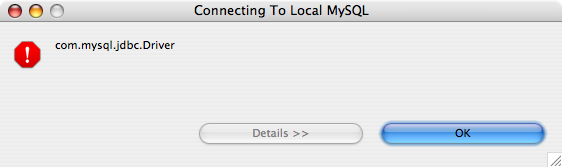
I don't know about you, but I have definitely seen more informative error messages than com.mysql.jdbc.Driver. After a little research, I discovered that we actually need to install the MySQL JDBC driver before using SQL Explorer to connect to a MySQL database. I didn't see this information anywhere in the SQL Explorer documentation or on the website. The fact that the Create New Connection window shows me a huge list of database drivers to choose from is very misleading!
Before we add the new driver, we need to download the MySQL JDBC Connector. You will want to copy the mysql-connector-java-5.0.8-bin.jar file somewhere permanent, since the new driver we create will look for for this file whenever we connect to a MySQL database.
mysql-connector-java-5.0.8-bin.jar file some place permanent (I stored it in my /Applications/Eclipse/ directory)'Create New Connection Profile' window in SQL Explorer, click the New Driver button'Create New Driver' screen fill in the Name field with something like 'MySQL JDBC Driver'jdbc:mysql://[<:3306>]/ mysql-connector-java-5.0.8-bin.jar file you downloaded'com.mysql.jdbc.Driver'At this point, you should have a window that looks like this:
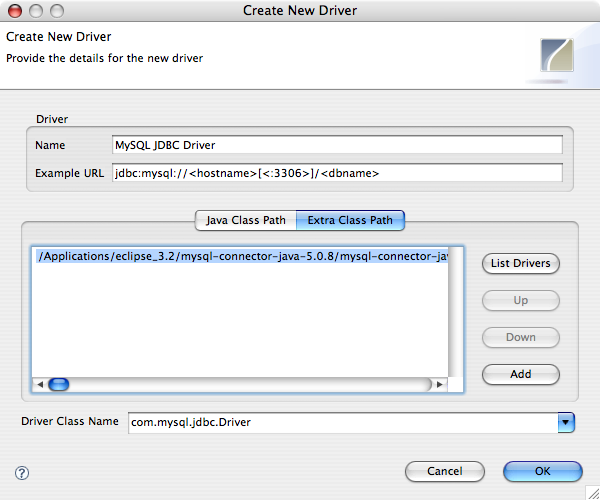
Click the OK button. This will bring you back to the 'Create New Connection Profile' window. Now you should be able to select your new 'MySQL JDBC Driver' from the list of drivers, fill in the URL field with something like 'jdbc:mysql://localhost:3306/test_database', and enter your MySQL Username and Password details (if you're using MAMP, the defaults are root/root). Click OK and then double click on the new connection in the Connections list. Assuming your MySQL database is running and the connection details are correct, you should see the Database Structure tab populate and allow you to view the contents of your database.
For those who might want to know exactly what versions of software I am using, here is the list:
Mac OS X 10.4.10 on a MacBook Pro
Eclipse 3.2.2
SQL Explorer plugin 3.0.0.2006
MySQL JDBC Connector 5.0.8
I've only started to explore the possibilities of what can be done with SQL Explorer, but I can already tell it will make my development process much smoother. I was surprised that there wasn't more readily available documentation explaining how to do what I have explained here, but hopefully someone will find this mini-tutorial useful.
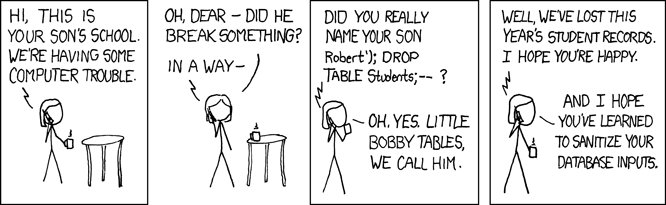
I don't like posting comics, but today's xkcd really hit home. As a web developer, I constantly need to worry about sanitizing SQL input to avoid security holes in my software.
SSH Client Keys allow you to quickly login to a remote server via SSH without typing your password. This is very useful if you login to a remote *nix server on a regular basis or if you want to automate scripts that need to remotely connect using SSH (using commands such as rsync or cvs over SSH).
I have used SSH keys for awhile now, but whenever I setup a new server I seem to draw a blank when trying to remember how to set them up. Each time I end up searching Google for "SSH Client Keys" and clicking on the excellent O'Reilly page "Quick Logins with ssh Client Keys". I really don't like duplicating information that is already available on the web, but I felt it was necessary to explain a couple of points the O'Reilly page misses, particularly about the authorized_keys2 file on the server.
Because I've followed the setup procedure so many times, I usually only need to glance at the directions to remember how its done. However, it was doing this that caused me much frustration today. I discovered that it is very important that the server-side ~/.ssh directory (and all files inside) are chmod 0700(!), otherwise this whole process is pointless!
Before I review how to setup SSH Client Keys, let me give a brief overview of the files involved:
Client-side:
~/.ssh/id_rsa(private key,chmod 0600)
~/.ssh/id_rsa.pub(public key,chmod 0655)Server-side:
~/.ssh/authorized_keys2(holds a list of public keys,chmod 0700)
Now that you know what files are needed, let me explain how to go about creating them. The procedure for getting SSH keys setup is rather straightforward. First of all, if you've never used SSH keys before you probably need to generate a public/private key pair on the client-side (your workstation). From your home directory, run the following command:
$ ssh-keygen -t rsa
When prompted, leave the default options as they are (that includes leaving the passphrase option blank) and simply press Enter until you're back at your command prompt. If you did not already have a ~/.ssh directory, this command will create the directory and place two files inside: Your private id_rsa and the public id_rsa.pub version of it to use on remote servers.
Now that you have the Client-side files you need, it's time to create the necessary server-side files and copy the contents of your public key file (id_rsa.pub) to authorized_keys2 on the server-side. The procedure outlined on the O'Reilly page assumes you don't already have any SSH keys setup on the remote server and simply replaces authorized_keys2 with the contents of id_rsa.pub. The two commands you are instructed to run are:
    $ ssh server "mkdir .ssh; chmod 0700 .ssh"

    $ scp .ssh/id_rsa.pub server:.ssh/authorized_keys2
While this is fine for those who are setting the keys up for the first time on a new server/account, it may slip up those who already use them. If the file already exists, it will overwrite any existing keys listed in the authorized_keys2 file. The authorized_keys2 file is simply a text file list of the public keys (the contents of ~/.ssh/id_rsa.pub on the client-side).The easiest thing to do if the file already exists on the server-side is to simply copy the contents of your ~/.ssh/id_rsa.pub file, SSH over to the server, open authorized_keys2, and paste your key at the bottom of the list.
Now you should be able to type ssh server and automatically login without typing a password!
After creating the Comment History page, I realized the Recent Comments Plugin was listing the comments in order from newer-to-older, instead of older-to-newer (which is how the comments on my post pages were ordered). I thought that I should probably change the ordering of the comments on my post pages to match the Comment History ordering.
The solution, I discovered, was rather simple. Just open the comments.php file in your theme's home directory, find this line:
<?php foreach ($comments as $comment) : ?>
and immediately above it add this:
<?php $comments = array_reverse($comments, true); ?>
Save the file and your comments will be ordered from newer-to-older. However, after making the change I realized my original older-to-newer ordering made more sense. Why? Because when someone is reading a post, the first comment they read might not make any sense unless they have read a previous comment.
So to make reading the post page more user-friendly, comments should be ordered from older-to-newer (the WordPress default). For a Comment History page however, ordering comments from newer-to-older makes more sense because the visitor is probably viewing the Comment History page to check for the most recent comments on a post they have been following.
My Dad and I have been going back and forth quite a bit in the comments on a recent post I wrote about Consumption. This filled up the Recent Comments list on the sidebar rather quickly and I wasn't able to see other recent comments. I realized a comment history or archive page, similar to my post archive page, would be very useful.
After looking around a bit, I found a really nice plugin by Krischan Jodies called Get Recent Comments. It has a ton of features and lots of configuration options. It has been updated as recently as last month and even supports the new widgets feature of WordPress 2.3 (it also works with older versions of WordPress as far back as 1.5).
By default, the instructions included with the plugin explain how to add recent comments to your sidebar. They don't, however, mention anything about creating a comment history page. In the instructions there is a snippet of PHP code which you are supposed to use in the sidebar.php file of your WordPress template. I thought great, I simply need to create a new page in WordPress and add that snippet of code to the page using the runPHP plugin to execute the PHP on that page. This worked, partially. At the top of my comment history was this error:
Parse error: syntax error, unexpected $end in /home/raamdev/public_html/blog/wp-content/plugins/runPHP/runPHP.php(410) : eval()’d code on line 1
I thought perhaps it was because my runPHP plugin was outdated, so I upgraded it to the latest version (currently v3.2.1). I still received the error, so I decided to play around with the snippet of PHP code provided by the Get Recent Comments plugin. I was able to modify it slightly to get rid of the error as well as output some additional text. Here is the snippet of code I use to create my new Comment History page:
<?php
if (function_exists('get_recent_comments')) {
   echo "(Showing 500 most recent comments.)";
   echo "<li><ul>".  get_recent_comments() ."</ul></li>";
}
?>
In the plugin options, I configured the plugin to group recent comments by post. This created a very readable Comment History page. After adding the ID of the new page to the exclude list in my header.php file to prevent the page from showing in the header (wp_list_pages('exclude=704&title_li=' )), I added a 'View comment history' link to the bottom of the Recent Comments list on the sidebar.
The Get Recent Comments plugin is really powerful and I'm a bit surprised that the plugin doesn't include basic instructions about how to create a comment history page. If you receive a decent amount of feedback from your visitors (in the form of comments), this is a great way to see all that feedback on a single page. If you have Trackback's and Pings enabled, this plugin can even show those.
wget is usually used to download a file or web page via HTTP, so by default running the wget http://www.example.com/myscript.php would simply create a local file called myscript.php and it would contain the contents of the script output. But I don't want that -- I want to execute the script and optionally redirect its output somewhere else (to a log file or into an email for reporting purposes). So here is how it's done:
$ wget -O - -q http://www.example.com/myscript.php >> log.txt
According to the wget man page, the "-O -" option is used to prevent wget from saving the file locally and instead simply outputs the result of the request. Also, wget normally produces it's own output (a progress bar showing the status of the download and some other verbose information) but we don't care about that stuff so we turn it off with the "-q" option. Lastly, the ">> log.txt" redirects the output of the script to a local file called log.txt. This could also be a pipe command to send the output as an email.
There is an incredible amount of power behind wget and there are a lot of cool things you can use it for besides calling PHP scripts from the command line. Check out this LifeHacker article for a bunch of cool uses.
If you have heard of SETI@home, you'll probably have an idea of how volunteer computing works. Basically there are huge amounts of information to analyze from many different fields of research. It is neither cost-effective nor possible to have current supercomputers dedicated to all these fields of research at the same time. Since you're usually never using 100% of your CPU's processing power, why not contribute to the research? Software has been designed which allows you to do just that. It allows you to share your extra CPU cycles and contribute to different projects. For example, with SETI@home you can contribute to the Search for Extraterrestrial Intelligence (SETI).
You may be wondering how this actually works, so let me give a very brief explain. First you download and install software which allows you to join a particular project. The software then connects to a central server and downloads a "chunk" of data in which to process. While your computer is idle (or all the time, depending on how you configure the options) the software processes and analyzes that data in much the same way a supercomputer would. When your computer is done processing the small chunk of data, it sends the results back to a central server and requests another chunk. In this manner, thousands and thousands of individual computers can act as one gigantic computer, all processing little chunks, of a much larger chunk, of data.

BOINC (Berkeley Open Infrastructure for Network Computing) was designed to replace the original SETI@home network (which was full of bugs and holes, allowing some users to report fake results to the network). BOINC was designed to support not only the SETI@home project, but any new projects as well. There are dozens of active BOINC projects which you can join, including Climateprediction.net, Rosetta@home (to predict and design protein structures to fight diseases), Einstein@home (to search for spinning neutron stars), and Malaria Control.
The computing power of this kind of network is incredible, and even more importantly, it is all voluntarily provided! The fastest supercomputer in the world is currently IBM's BlueGene/L, which can run at 360 TFlop/s (“teraflops” or trillions of calculations per second). BlueGene/L uses 1.5 megawatts of power and its hardware takes up 2,500 square feet. Now, compare that to the more than 430,000 active machines worldwide which make up the BOINC system, providing a whooping 663 TFlop/s!
Another very important result of this volunteer computing setup is the use of power, and I'm not talking about CPU power but rather electric power. All of the personal computers running BOINC would probably be turned on and consuming power regardless of whether or not they were running BOINC! This means that by using a volunteer "quasi-supercomputing" platform we not only have a greater potential for computing power but we save energy at the same time!
I envision a future where networks become so robust and fast that distributed applications and the "sharing" of CPU cycles is a normal, common place thing. Imagine for a second a world where you sit down at your computer and open a very CPU-intensive 3D modeling program -- so intensive in fact that it uses 100% of your PC's CPU power. But instead of the rendering software slowing down because of a lack of CPU power, it actually speeds up by grabbing CPU power from your neighbors computer, which is running but not being used (perhaps your neighbor went to the grocery store). While your 3D software is rendering, you decide to stream a video over the Internet. Again, your computer uses CPU cycles from other idle computers in the neighborhood to provide you with all the power you need.
I installed the BOINC Manager on my MacBook Pro the other day and joined a couple of projects. I plan to install it on all computers in my possession that run on a regular basis, linking all of them to my single BOINC account (this way I can monitor the combined work of my own mini-supercomputing network!). I can configure BOINC to not process data unless my computer has been idle for X number of minutes and give other applications a higher priority over BOINC in case they suddenly need CPU power. Basically my computers will run the same as they do now but will be contributing to scientific and/or medical research while they're idle!
 SELECT * FROM life WHERE free_time > 0;

MySQL returned 1 row(s). (Query used the remaining 0.0001 seconds of your free time)
A couple of months ago I wrote about a solution to recursively rename multiple files on a Linux system. The problem with that solution was that the script needed to be saved as a file called rename and then chmod 755 to make it executable.
Today, while writing a script for my ASAP application, I found a much easier one line solution which uses commonly installed command line tools:
$ for i in `find . -name "*.php5"` ; do mv -v $i ${i/.php/.php5/}; done
This chain of commands searches for all files containing .php5 and renames them to .php. The most obvious limitation of this solution is that if a filename or directory contains .php5, it will also be renamed. So if, for some wacky reason, you had a directory called /my.php5.files/, that directory would be renamed to /my.php.files/. Similarly, a file named my.php5.example.php would be renamed to my.php.example.php.
For my application, this one liner worked fine as I simply added a warning to the top of my script. If anyone knows how I can easily modify that command to ignore all directories (I didn't see anything in the find command syntax that might help), I would greatly appreciate the information!
I learned about programming when I was 12, three years after I began building computers. I asked my Dad one day (at the time he was working at Digital as a technical writer) how the games and programs on the computer were created. He didn't know a whole lot about programming, but he knew of the BASIC programming language and told me I should get a book and learn it. So I bought a book and started using QBASIC on MS-DOS 6.22. From there I moved to Visual Basic (which I later realized was a big mistake). VB was very much like BASIC and making the transition was very easy. I coded "AOL apps" for awhile (for those who remember: Punters, Mail Bombs, ChatRoom Busters, etc.) until AOL started cracking down on such things.
A few years later, when programming for money came into view, I discovered that I should really be familiar with C or C++. So I glanced through a couple of C programming books and wow, what a difference from BASIC! My mental understanding of how programming languages worked had been spoiled by the simplistic syntax of BASIC and VB. It took many, many books to finally get a basic understanding of C and C++. I also flipped through a couple of Java books around this time because I heard the syntax was similar to C. Besides, who wouldn't want to learn a programming language called Java?
HTML is something I have almost always known how to use (I can't even remember when I first learned it) and I never really thought of it as a programming language. When I started to realize how important, and powerful, dynamic web applications were becoming, I decided to investigate what it was that made the HTML dynamic (after all, if you view the source of a dynamic web page, it usually just looks like plain HTML!). I discovered, almost accidentally, the open-source programming language PHP (PHP: Hypertext Preprocessor) and quickly started learning it. I later learned about ASP (Microsoft's Active Server Pages) and JSP (JavaServer Pages) (wow, am I glad I found PHP first!). Since then I have also learned a lot about databases, including database design and the basic principles of good database design. The most popular database used with PHP at the time was MySQL, so that is what I studied. I've also had some light exposure to MSSQL.
Currently, I am working at a software startup company called Aerva, Inc. in Cambridge, Massachusetts doing everything from software support and debugging to being the "company muscle" (I'm the only one with a truck). I have built, and currently manage, their Support Center using PHP & MySQL, although I have also had to write some bash and Perl (ugh!) scripts to interface with their software provisioning process. I continue to work on adding new features to the Support Center to help streamline regular processes while at the same time increasing my knowledge of various programming languages and the Linux operating system.
I code with PHP on a daily basis (on a MacBook Pro using MAMP and Eclipse) and I am currently working on several of my own web projects. I just finished working on a little application called ASAP - Automated Staging and Publishing, which allows me to automate the process of checking out a project from CVS and then rsync'ing it to a remote server for staging or publishing purposes.
Everyone says PHP is "easy" to learn, and although they are probably right they fail to realize that its simplicity is also its weakness. To code good and secure PHP you need to have a strong understanding of the language and how best to use its many features. In addition to continuing to perfect my understanding of the PHP programming language and related OOP (Object-Oriented Programming) technologies, I wish to learn more about Java, XML, and AJAX.
Humans require very little to survive and be happy, yet we consume so much. What are we trying to prove?